
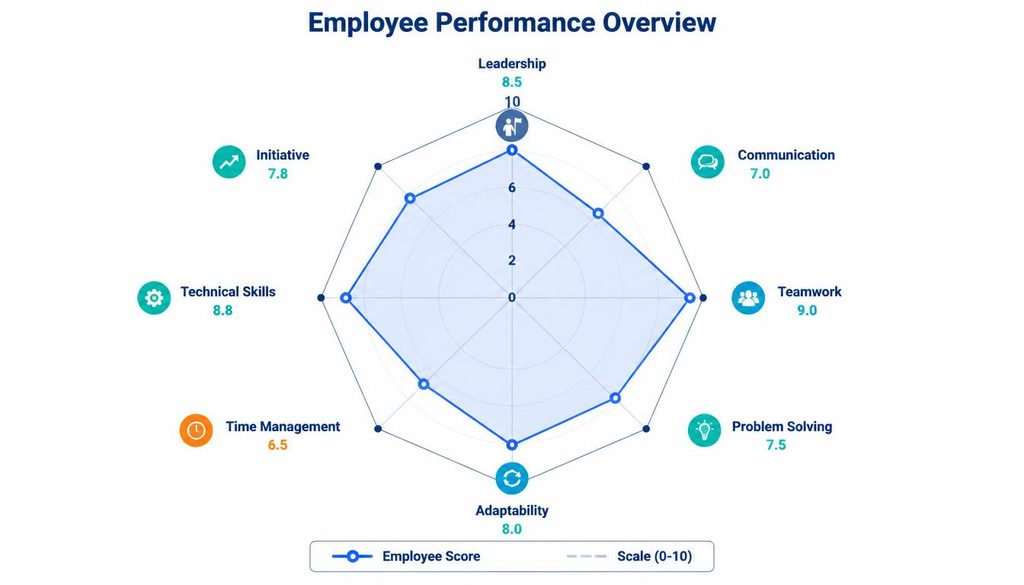
Have you ever tried to compare several different things at once and found yourself staring at a spreadsheet that seemed to have more numbers than answers?
Maybe you wanted to understand your skills, track personal progress, compare team performance, or see whether your daily routine was balanced.
Sometimes, ordinary tables simply don’t tell the whole story. That’s where a Radar Chart comes into the picture, turning rows of numbers into a visual pattern that is much easier to understand.
Imagine a web-shaped diagram where every line represents a different measurement. One point shows communication skills, another represents creativity, and another indicates problem-solving ability.
When the points connect, a shape appears, revealing strengths, gaps, and interesting differences that might otherwise remain hidden. It’s a little like looking at a map of your progress, with each direction telling a different part of the story.
A radar chart is useful for students, professionals, coaches, researchers, and anyone who enjoys organizing information in a meaningful way.
With modern tools, including a Radar Chart Widget and a Radar Chart Widget for Notion, you can also bring these visual insights directly into your personal workspace.
Whether you’re discovering radar chart visualization for the first time or looking for ways to improve a Notion dashboard, this guide explains how these charts work, which types are available, how to customize them, and where they can provide genuine value.
| Feature | Details |
|---|---|
| Chart Type | Radar Chart |
| Also Called | Spider Chart |
| Shape | Polygon or web |
| Purpose | Compare multiple variables |
| Best For | Data analysis and performance |
| Common Uses | Business, education, sports |
| Main Benefit | Shows strengths and weaknesses |
| Limitation | Complex with too many variables |
What Is a Radar Chart?
A Radar Chart, also called a spider chart, web chart, or radial chart, is a data visualization method that displays multiple variables around a central point. Each variable has its own axis, and values are plotted along those axes before being connected to form a shape.
Instead of reading a separate number for every category, you can view several measurements together. The resulting pattern makes it easier to notice differences between categories and compare multiple profiles.
For example, imagine a student evaluating five skills:
- Mathematics
- Science
- Writing
- Communication
- Problem-solving
Each skill receives a score from 1 to 10. The scores are plotted along five separate axes, and the points are connected to form a polygon. A higher score extends farther from the center, while a lower score remains closer to it.
The resulting shape provides a quick overview of the student’s current strengths and areas for improvement. Of course, the chart doesn’t explain why a score is high or low, but it gives you a helpful place to start asking questions.
The defining feature of this radial data visualization is its ability to show multiple variables within one compact diagram.
How Does a Radar Chart Work?
A radar chart uses a central origin and several axes arranged in a circular pattern. Each axis represents one category, while the distance from the center represents the value assigned to that category.
Think of a bicycle wheel with spokes. Each spoke points in a different direction, and every direction has its own measurement scale. A radar chart follows a similar idea, except its points are connected to reveal a shape.
The Main Components of a Radar Chart
Understanding the individual components makes the visualization much easier to read.
- Axis labels: These identify the categories being measured, such as focus, creativity, teamwork, or productivity.
- Axis lines: These extend outward from the center and provide a direction for each variable.
- Grid lines: Circular or polygon-shaped lines help readers estimate values.
- Data points: Markers indicate the exact positions of the measured values.
- Plot lines: These connect the data points and create the chart’s outline.
- Filled area: Some charts shade the region inside the outline to make the overall pattern more visible.
- Dataset colors: Different colors distinguish people, time periods, products, or other data groups.
Together, these elements create a symmetrical web structure that makes category-by-category comparison more intuitive.
A Simple Radar Chart Example
Suppose you want to evaluate a personal development plan using five scores.
| Category | Score out of 10 |
|---|---|
| Focus | 8 |
| Creativity | 9 |
| Communication | 6 |
| Organization | 7 |
| Consistency | 5 |
A radar chart would show creativity extending far from the center, followed by focus, organization, communication, and consistency.
The pattern provides a quick overview without requiring someone to read every number separately. Still, the underlying scores matter because two different shapes can sometimes look more similar than their actual values suggest.
Why Use a Radar Chart for Data Visualization?
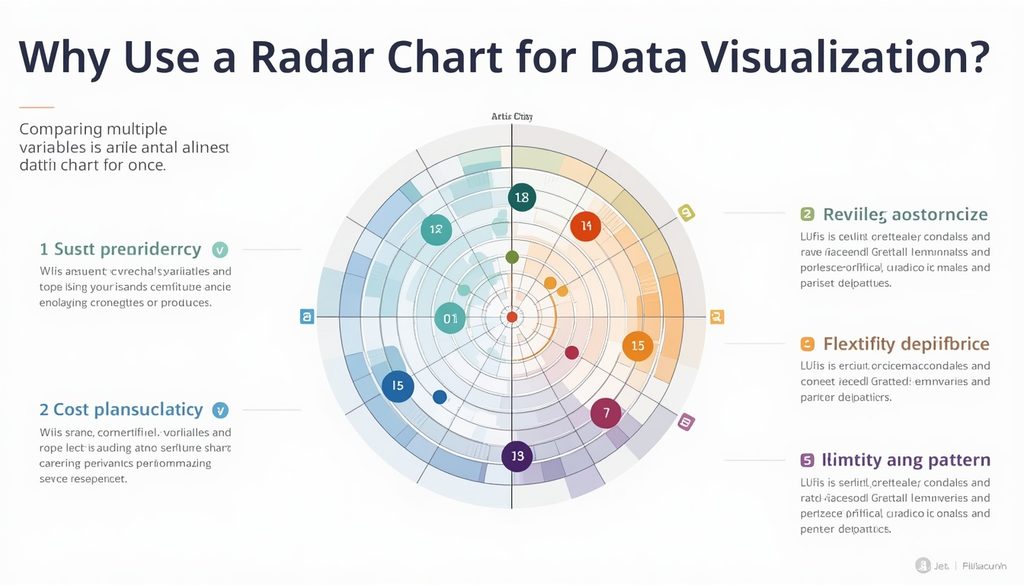
Charts are not merely decorations for reports. The right visualization can help people recognize patterns, ask better questions, and decide where to investigate further.
A radar chart visualization is especially useful when several related measurements need to be considered together.
Quick Comparison Across Multiple Dimensions
A radar chart brings different measurements into one view. Rather than moving between separate tables or graphs, you can compare categories within a single visual space.
This is valuable when reviewing a product’s features, a student’s learning progress, or an employee’s professional development.
Recognizing Strengths and Weaknesses
The shape often reveals uneven performance at a glance. A long extension on one axis may indicate a relative strength, while a shorter extension can identify an area that deserves attention.
These differences shouldn’t automatically be treated as failures. They are simply useful signals that can guide future planning.
Comparing Multiple Data Sets
A chart can display more than one dataset, allowing users to compare profiles or time periods.
For instance, a person might compare their current skill assessment with one completed three months earlier. When the two shapes overlap, changes become easier to spot.
Compact Dashboard Design
A radar chart can fit into a relatively small dashboard area while showing several categories. This makes it a practical choice for personal dashboards, coaching sessions, project reviews, and performance reports.
However, radar charts aren’t ideal for every dataset. If you need to compare precise values across dozens of categories, a bar chart or table may be easier to interpret.
Different Types of Radar Charts
Not every radar chart needs to look the same. The right design depends on how much data you have and what you want readers to notice.
Standard Radar Chart
A standard radar chart uses connected lines to show the values of each category. It is simple, relatively uncluttered, and suitable for basic comparisons.
Use this style when you want to focus on individual measurements rather than the area inside the shape.
Filled Radar Chart
A filled radar chart shades the region enclosed by the connected data points. The colored area makes the overall profile more prominent and can help readers recognize broad patterns quickly.
This format is often helpful when displaying a single person’s skill profile or comparing a small number of datasets.
If several filled shapes overlap, though, the chart may become difficult to read. Transparent fills and carefully chosen colors can help reduce that problem.
Outlined Radar Chart
An outlined radar chart displays the connected lines without filling the interior. It is particularly useful when several profiles need to appear on the same chart.
Because the central area remains open, overlapping data points and connecting lines can be easier to distinguish.
Multi-Radar Comparison
A multi-radar comparison places multiple datasets on the same set of axes. Each dataset uses its own line color, allowing the viewer to compare categories directly.
For example, a team leader might compare the skill profiles of three project groups using the same criteria. The resulting chart can reveal which areas are consistently strong and where development needs differ.
The key is to keep the chart readable. Three clear profiles can be informative; ten overlapping profiles can turn the diagram into a confusing tangle.
Radar Chart Widget: Making Data More Interactive
A Radar Chart Widget brings radar chart functionality into a digital interface, allowing users to display, explore, and sometimes interact with their data without creating every chart manually.
Depending on the tool, a widget may offer configurable categories, adjustable scales, multiple datasets, custom colors, and interactive tooltips.
Some tools also support automatic data updates or connections to external databases. These features can make a chart more useful as part of a regularly updated workspace.
Important Features to Look For
When choosing a radar chart maker or online radar chart generator, consider the features that matter for your intended use.
- Axis labels: Make category names easy to recognize.
- Custom radius scaling: Choose a meaningful value range for the measurements.
- Tooltip on hover: Display exact values when a reader hovers over a data point.
- Data point visibility: Show markers clearly enough to distinguish individual measurements.
- Dataset colors: Use contrasting colors for different profiles.
- Axis lines: Keep the chart’s structure easy to follow.
- Background customization: Match the chart to your dashboard design.
- Grid density: Choose enough grid lines to support comparisons without overcrowding the diagram.
- Label spacing: Prevent long category names from colliding.
- Responsive radar charts: Ensure the visualization adapts to different screen sizes.
A useful widget should balance flexibility with simplicity. There is little benefit in having dozens of settings if basic categories and values are difficult to configure.
Radar Chart Widget for Notion: Bringing Visual Insights Into Your Workspace
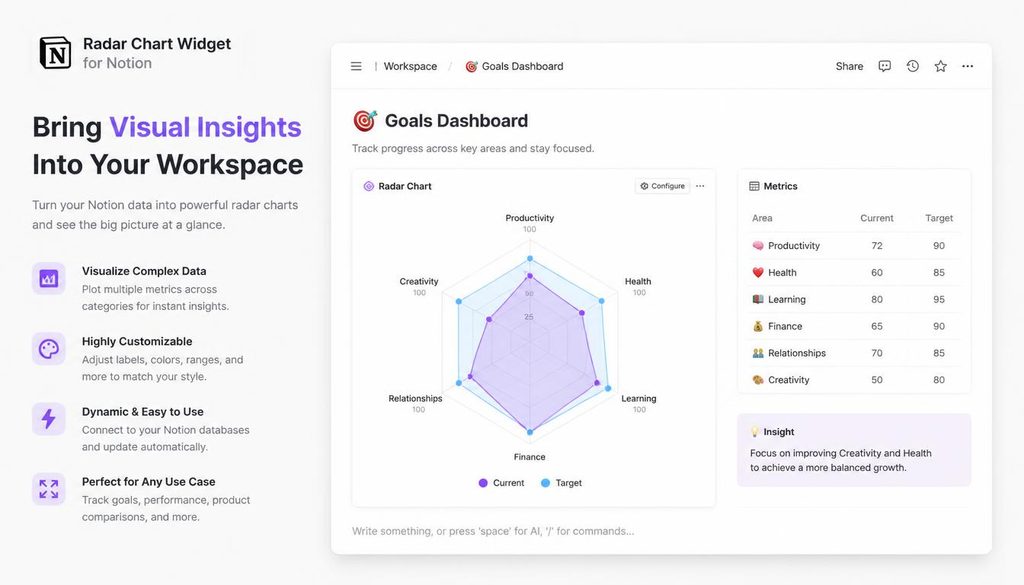
Notion is widely used to organize notes, tasks, projects, goals, and databases. A Radar Chart Widget for Notion can add a visual layer to this information, helping users understand several related measurements without leaving their workspace.
Instead of keeping skill assessments in one document and progress notes in another, you can place a chart on a dashboard alongside your existing resources.
For example, a student might create a study dashboard with subject scores, weekly goals, revision notes, and a radar chart showing how confidently they understand each topic. It makes the dashboard feel less like a storage cabinet and more like a place to review progress.
What Is a Radar Chart Widget for Notion?
A Notion-compatible radar chart widget is generally an external chart or visualization that can be displayed inside a Notion page through an embed link or another supported integration method.
One possible option is the Blocky Radar Chart Widget, if its current features and integration options meet your needs. Before choosing any specific provider, check its supported data sources, customization features, and current Notion compatibility.
The usual purpose is straightforward: display a chart inside a Notion dashboard so you can view important measurements alongside the information that explains them.
Benefits of Using a Radar Chart in Notion
A radar chart can make a Notion workspace more informative in several ways.
- It provides a visual summary of multiple metrics.
- It keeps related insights near your notes and action plans.
- It supports skill tracking and progress reviews.
- It can help organize wellness metrics in a personal dashboard.
- It offers a convenient overview of team or project performance.
- It can make recurring reviews more engaging and easier to navigate.
- It reduces the need to switch between separate applications when an embedded chart is sufficient.
These benefits depend on the quality of the underlying data and the capabilities of the chosen widget. An attractive dashboard is helpful, but reliable measurements are what make it meaningful.
How to Embed a Radar Chart in Notion
If you’re wondering how to embed a radar chart in Notion, the general process is quite manageable. The exact steps may vary depending on the provider and whether the chart supports manual input, a database connection, or another data source.
Step 1: Prepare Your Data
Start by identifying the variables you want to display. These could be skill scores, wellness indicators, project metrics, or learning goals.
Keep the categories relevant to one another, and decide how each value will be measured.
For example, five communication skills scored from 1 to 10 are easier to interpret together than five unrelated measurements using incompatible scales.
Step 2: Choose a Radar Chart Tool
Select a radar chart widget or generator that supports the design and data source you need.
Review whether the tool provides the chart style, dataset controls, axis labels, and embedding options you want. If you plan to use a Notion database, verify that the provider supports the required connection rather than assuming every widget does.
Step 3: Configure the Chart
Enter your category names and numeric values. Then choose the chart style, colors, grid settings, and value range.
For a simple dashboard, a standard or outlined design is often a sensible starting point. You can add a filled area or more datasets later if doing so improves clarity.
Step 4: Copy the Embed URL
If the chart provider supports embedding, copy its published embed URL or use its provided sharing option.
Some services offer a dedicated URL intended for embedding, while others provide a general share link. Follow the provider’s instructions so the chart displays correctly.
Step 5: Add the Chart to Notion
Open the desired Notion page and insert an embed block, commonly through the /embed command. Paste the supported URL and confirm the embed.
If the chart does not load, check the link, sharing permissions, and whether the provider allows external embedding. Some services may require a paid plan or particular privacy settings.
Step 6: Test the Display
Review the chart on the page and resize it if necessary. Check whether labels are readable and whether the visualization works on smaller screens.
A quick test can prevent the common problem of a beautiful chart that becomes nearly impossible to understand once placed inside a narrow dashboard column.
Connecting a Radar Chart to a Notion Database
Manual data entry works well for small projects. But when values change regularly, a Notion database integration may reduce repetitive work and keep your chart more current.
The available setup depends on the widget and the provider’s integration capabilities.
Understanding Numeric Fields
Suppose your Notion database tracks learning progress using these properties:
| Topic | Confidence | Practice | Accuracy |
|---|---|---|---|
| Algebra | 8 | 7 | 9 |
| Geometry | 6 | 8 | 7 |
| Statistics | 7 | 6 | 8 |
Each numeric property represents a measurement that could potentially appear on a radar chart. The exact mapping depends on whether the integration expects one record per profile, one property per axis, or a different data structure.
Before connecting the database, check how the widget interprets rows, columns, and categories.
Using Rollup Properties
Notion rollup properties can summarize information from related database records. Depending on the supported integration, these values may be useful for charting aggregate results.
For instance, a project database could summarize completed task scores or learning sessions and display those summaries as chart metrics.
Be sure that the integration can access the rollup values and that the results are numeric. A field containing a descriptive phrase will not automatically become a meaningful plotted value.
Live Data Synchronization
Some integrations support live data synchronization, while others require manual refreshes, periodic updates, or a separate data-export step.
Check how frequently the chart refreshes and whether changes to Notion properties appear automatically. If the widget relies on an external service, its permissions and connection settings may also affect what data can be displayed.
This is particularly important when using the chart for regular progress reviews. A chart that shows last month’s values without making that fact clear can easily lead to the wrong conclusion.
Radar Chart Applications: From Skill Tracking to Wellness
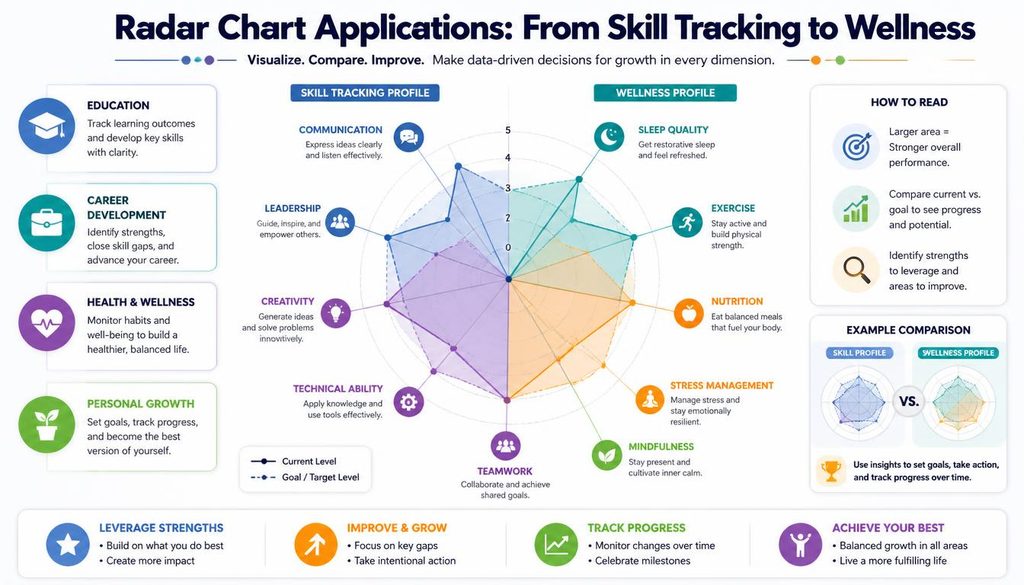
A radar chart is most useful when the categories tell a coherent story. The following applications show how the same visualization can serve very different purposes.
Skill Assessments and Professional Development
A radar chart can help visualize skill assessments, showing areas such as communication, technical knowledge, collaboration, leadership, and problem-solving.
An individual can compare self-assessment scores with peer feedback, provided both use the same criteria and scoring scale.
This can support a constructive development conversation. Rather than labeling someone as good or bad at a job, the chart encourages a more specific discussion about which skills need practice and what support might help.
Personality Profiles
A radar chart can display responses across several personality-related dimensions or behavioral traits. It may help users explore differences between self-reported profiles, provided the assessment is appropriate for the purpose.
However, a chart alone cannot establish a person’s personality type or provide a psychological diagnosis. Its usefulness depends on the quality of the assessment, the meaning of its categories, and the context in which results are interpreted.
Wellness Metrics
Personal dashboards sometimes use radar charts to summarize emotional well-being, physical activity, social connection, rest, and mental focus.
Such a chart can support reflection on wellness metrics, but it should not turn everyday life into a rigid performance score. A low value may indicate a temporary change or simply reflect how a person chose to answer a question.
For sensitive health-related decisions, a general-purpose visualization is no substitute for qualified professional guidance.
Team Role Mapping
In collaborative workplaces, a chart can summarize team members’ self-reported or assessed strengths across areas such as communication, planning, creativity, coordination, and technical problem-solving.
This type of team role mapping can encourage a useful conversation about responsibilities and complementary skills.
The results should not be treated as fixed labels. People can develop new strengths, and performance changes depending on the task, environment, and available resources.
Learning Type Distribution and Learning Progress
Teachers and students can use radar charts to compare progress across subjects or learning objectives.
A chart might show reading comprehension, writing, vocabulary, problem-solving, and practical application. Reviewing it over time can reveal which topics deserve additional practice.
If you track a concept called learning type distribution, define it carefully. Different learning preferences should not be confused with proof that a student can learn effectively only through one particular style. A radar chart can describe selected measurements, but it cannot validate a learning theory by itself.
Lifestyle Balancing
A personal dashboard might track work, rest, physical activity, social time, focused study, and hobbies.
The resulting lifestyle balancing chart can encourage reflection on whether your routine matches your priorities. It isn’t necessary for every category to have an identical score; the right balance depends on personal circumstances.
For example, a busy examination week may temporarily shift time toward study, while a holiday period may allow more rest and social activity. Context matters more than a perfectly symmetrical shape.
How to Compare Multiple Datasets Using a Radar Chart
Comparing datasets is one of the most recognizable uses of radar charts, but a few practical rules can make the results far more reliable.
Use the Same Categories
Every dataset in a direct comparison should use the same axes in the same order.
If one profile includes creativity and another replaces it with speed, the shapes no longer represent equivalent measurements. Keeping categories consistent allows the reader to focus on real differences rather than changes in chart structure.
Keep the Scales Comparable
A score of 8 out of 10 should mean the same thing across profiles when you’re comparing them directly.
Using different minimums, maximums, or scoring methods can distort the visual result. Comparable value scales are essential for a fair comparison.
Limit the Number of Overlapping Profiles
A chart with two or three datasets can be quite clear. As more shapes are added, the lines and filled regions may overlap, making the differences harder to follow.
If you need to compare many people or products, consider separate charts, a small-multiple layout, or a complementary table.
Include the Actual Values
A radar chart offers a strong overview, but estimating exact numbers from a polygon can be difficult.
Include data labels, interactive tooltips, or a supporting table when precision matters. This combines the convenience of visual pattern recognition with the accuracy of the original data.
How to Customize Radar Chart Colors and Axis Labels
Customization isn’t just about making a chart attractive. It can also help readers understand the information correctly.
Choose Clear Dataset Colors
Use contrasting colors that remain distinguishable against the chart background. When several datasets are displayed, keep each dataset’s color consistent throughout the dashboard.
If possible, choose combinations that remain readable for people with color-vision differences. Line styles or markers can provide additional distinctions when colors alone are insufficient.
Set Appropriate Radius Scaling
Custom radius scaling determines how values are mapped onto the distance from the chart’s center.
A scale from 0 to 10 is a reasonable choice for scores designed around that range. If you instead use a scale from 5 to 10, the chart may exaggerate small differences because the center no longer represents zero.
Always make the scale clear, especially when the visualization will inform a comparison or decision.
Adjust Grid Density and Label Spacing
Too few grid lines can make values difficult to estimate. Too many can create visual clutter.
Choose a grid density that supports the level of precision needed, and provide enough label spacing to keep category names readable. Shorter labels may also help on compact displays.
Consider Light and Dark Modes
A well-designed chart should remain readable in both light mode and dark mode, if the widget supports them.
Check line contrast, grid visibility, text color, and the appearance of any filled regions. A color combination that looks excellent against a white background may become difficult to see against a dark one.
Make the Chart Responsive
A responsive radar chart widget adjusts to different display sizes, such as a desktop browser, tablet, or mobile screen.
Responsive settings should preserve the relationship between the plotted data and its labels. If long labels become cramped on smaller screens, the chart may need a different size or a simplified set of categories.
Common Radar Chart Mistakes to Avoid
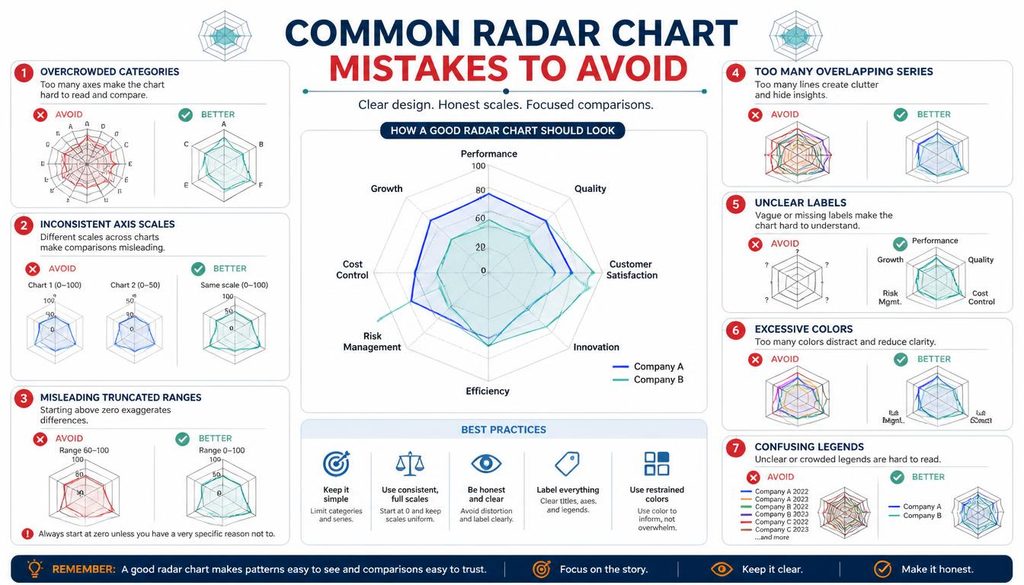
Even a polished visualization can communicate the wrong impression if it is configured poorly.
- Using unrelated categories: Choose variables that make sense together for the question being asked.
- Mixing different scales: Ensure that values are comparable before overlaying datasets.
- Adding too many axes: Excessive categories can make the chart difficult to read.
- Overlapping too many filled shapes: Use outlines, transparency, or separate charts when comparisons become crowded.
- Ignoring missing values: Explain how unavailable data is handled rather than silently treating it as zero.
- Using vague labels: Names such as “Score 1” offer little context. Descriptive labels are usually better.
- Treating area as an exact score: The visual size of a polygon is not a substitute for checking individual values.
- Drawing conclusions without context: A chart describes the data provided; it doesn’t explain every reason behind the pattern.
One additional point deserves attention: radar charts can make small differences appear more dramatic than they are. Whenever the decision is important, review the underlying numbers and consider another visualization as a cross-check.
Radar Chart vs. Other Visualization Tools
A radar chart is one option among several, and each chart type has its own strengths.
| Visualization | Best use | Main limitation |
|---|---|---|
| Radar chart | Comparing a few related dimensions | Crowding with many datasets |
| Bar chart | Comparing individual values | Less compact for many profiles |
| Line chart | Showing changes over time | Not ideal for unrelated categories |
| Table | Reading exact numbers | Patterns may be harder to spot |
| Scatter plot | Exploring relationships between two variables | Usually focuses on two numeric axes |
For example, use a radar chart to review six professional skills together, a line chart to monitor monthly progress, and a table when the exact values need to be checked.
These tools can complement one another. A dashboard doesn’t have to rely on one visualization for every question.
Tips for Choosing the Best Radar Chart Widget for Notion Dashboards
Choosing the right widget depends on how you plan to use it, how your data is stored, and how often you need to update the chart.
Consider these questions before committing to a tool:
- Does it support the number of categories you need?
- Can you display multiple datasets?
- Are axis labels, colors, and value ranges customizable?
- Does it offer a reliable Notion embed or supported integration?
- Can it connect to the database structure you already use?
- Does it support automatic updates, or will you need to refresh data manually?
- Are interactive tooltips available?
- Does the chart remain readable on mobile devices?
- Can you adjust the background for your preferred dashboard theme?
- Are privacy, sharing, and access permissions suitable for your information?
If you’re specifically evaluating a Radar Chart Widget for Notion, check the provider’s current documentation for its embedding method, database support, and any usage limitations. Features can vary between services and subscription plans.
Start with the simplest option that meets your requirements. You can always add more advanced integration and styling later, once you know which insights you actually use.
Frequently Asked Questions About Radar Charts
What is a radar chart used for?
A radar chart compares multiple related variables in a single visual. Common applications include skill assessments, product comparisons, team performance, wellness tracking, and learning progress.
Is a radar chart the same as a spider chart?
Yes. “Spider chart” and “radar chart” are commonly used names for the same general type of visualization. The connected axes create a web-like appearance.
How do I create a radar chart?
Choose relevant categories, enter numeric values, select a consistent scale, and plot each value along its corresponding axis. Connect the data points and add labels so the resulting shape is easy to interpret.
Can I embed a radar chart in Notion?
Yes, if your chart provider supports embedding. Copy the supported embed URL, insert an embed block into your Notion page, and paste the link. Some integrations may require additional permissions or setup.
What is the difference between a standard and filled radar chart?
A standard radar chart emphasizes the connected outline, while a filled radar chart also shades the enclosed area. Outlined charts are often helpful for overlapping datasets, whereas filled charts can emphasize a single profile or a small number of comparisons.
Can a radar chart compare multiple people?
Yes. A multi-radar chart can compare several people using the same categories and scoring scale. Use clear colors and avoid adding so many profiles that the lines become difficult to distinguish.
Can a radar chart update automatically from a Notion database?
Some widgets support automatic synchronization, but the feature depends on the specific provider and integration. Check whether numeric properties and rollup values are supported and how frequently changes are reflected in the chart.
Conclusion: Turn Numbers Into Meaningful Insights
A Radar Chart offers a practical way to see several dimensions of information at once. From skill development and learning progress to team comparisons and lifestyle reflection, it can transform a collection of numbers into a pattern that is easier to explore.
The real value, however, isn’t the shape itself. It’s the conversation the shape starts, the questions it encourages, and the decisions it helps you examine more carefully.
With the right Radar Chart Widget, you can create a clear visualization that fits your workflow. And with a compatible Radar Chart Widget for Notion, you can bring those insights directly into a dashboard alongside your goals, notes, projects, and databases.
Keep the categories meaningful, use comparable scales, choose a readable design, and always look beyond the visual pattern when interpreting the results. A chart works best when it helps you understand information rather than simply making that information look impressive.
If you’re building a radar chart dashboard, consider which measurements would genuinely help you make better decisions. Share your favorite use case or chart design ideas in the comments, because sometimes the most useful visualization begins with a simple question that deserves a clearer answer.